
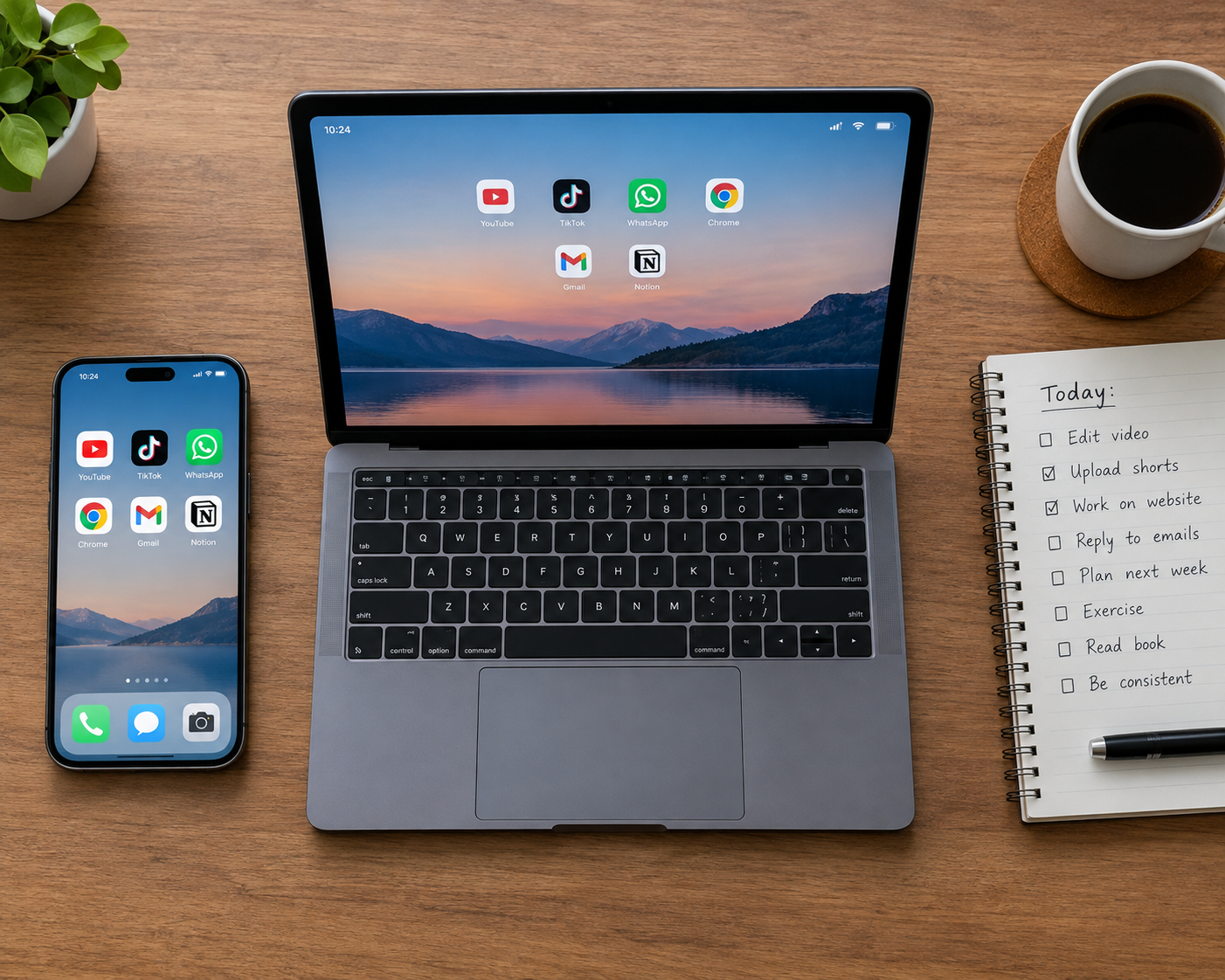
Most people don’t have a shortage of apps and software. They have a surplus. Open the app drawer on a phone that’s a few years old and you’ll find games installed for one afternoon, a scanner app from a single tax season, three note-taking tools that each hold a handful of abandoned notes, and a subscription that renews every month for something nobody remembers signing up for.
The same drift happens on laptops and desktops. Trial versions linger, background updaters pile up, and browser extensions multiply until the machine feels slower and nobody can say why.
This guide doesn’t hand you a list of “top 10 apps.” Those lists age quickly and rarely fit your situation. It’s about how to choose, evaluate, and maintain the software you use, so your devices stay fast, your data stays under your control, and your money goes to tools that earn it.
Why the Software You Choose Matters More Than the Software You Collect
Every app you install is a small commitment. It takes storage, may run in the background, may request permissions, and may need updates. It might also hold your data. When you multiply that by sixty or a hundred apps, the cost is real even if each one looks harmless.
Three costs tend to be overlooked.
Attention. Notifications, onboarding emails, and “we’ve added new features” pop-ups all compete for focus. A tool that interrupts you more than it helps you is a bad tool, however polished it looks.
Security exposure. Every installed program is something that can contain a vulnerability. Software you’ve stopped using is also software you’ve stopped updating, which is where problems tend to hide.
Money. Subscription pricing has changed how software is sold. A few small monthly charges feel painless individually, but together they can quietly add up to a significant yearly expense.
Start With a Software Audit
Before adding anything new, look at what you already have. A simple audit takes less than an hour and usually pays for itself.
On your phone
Go through your apps screen by screen and ask one question for each: when did I last open this on purpose? If you can’t remember, remove it. You can reinstall anything later.
Then check your subscriptions through the platform itself. On iPhone, the subscription list is in your Apple Account settings. On Android, it’s in the Google Play Store under Payments & subscriptions. Both list active renewals in one place, which is more reliable than hunting through old emails. Apps installed outside these stores may bill you separately, so check your bank or card statement as well.
On your computer
On Windows, the Installed apps page in Settings shows what’s installed and roughly how large each program is. On macOS, check your Applications folder and the Login Items section in System Settings, since startup items are a common cause of slow boots. Linux users can review their package manager’s list of installed packages.
Pay special attention to:
- Programs that launch at startup without your asking
- Browser extensions you didn’t deliberately install or no longer need
- Old versions of software you’ve since replaced
- Trial software that expired long ago
Sort what’s left into three groups
| Group | What it means | What to do |
|---|---|---|
| Essential | You use it weekly or it’s critical to your work | Keep, and make sure it’s updated |
| Occasional | Useful a few times a year | Keep if it’s free and lightweight; reconsider if it costs money |
| Dormant | You can’t remember the last time | Remove |
The occasional group is where most wasted subscriptions live. A tool you need twice a year rarely justifies a monthly fee. Subscribe when you need it, then cancel, or look for a one-time-purchase or free alternative.
How to Evaluate a New App Before You Install It
Reviews and star ratings are a starting point, but they’re easy to skew. A better approach is to run a short checklist.
1. Read the privacy information, not just the description
Both major mobile app stores now require developers to disclose what data their apps collect. Apple calls these privacy labels, and Google Play calls the equivalent section Data safety. These are self-reported by developers, so they aren’t a guarantee, but they’re useful for spotting mismatches. A flashlight app that wants your contacts and location should make you stop.
2. Look at the permissions it requests
An app asking for the minimum it needs to function is a good sign. A calculator that wants microphone access is not. On modern versions of both iOS and Android, you can grant permissions only while the app is in use, or deny them and see whether the app still works. If it refuses to function without unrelated permissions, that tells you something about the developer.
3. Check who made it and how it’s maintained
Look at the developer’s other products, their website, and when the app was last updated. An actively maintained app with a clear support channel is generally safer than one that hasn’t changed in three years. For desktop software, the official website is almost always a better download source than a third-party download portal, which sometimes bundles unwanted extras.
4. Understand the business model
Free software has to be funded somehow. Sometimes it’s open-source and community-supported. Sometimes it’s a free tier meant to convert you to a paid plan. Sometimes the product is your data or your attention. Knowing which one you’re dealing with helps you decide whether the trade-off is acceptable. Pricing changes often, so check the official pricing page rather than trusting a review that may be outdated.
5. Test whether you can leave
Before putting important data into a tool, find out whether you can export it in a standard format. A notes app that only exports to a proprietary file type is a quiet form of lock-in. The ability to leave easily is one of the best indicators of a trustworthy product.
Free and Open-Source Alternatives Worth Knowing
Paid software is often excellent, but for many everyday tasks you may not need it. These long-established free options are worth a look, and you should check each project’s official site for current features and supported platforms:
- LibreOffice for documents, spreadsheets, and presentations, a long-standing alternative to commercial office suites
- VLC for playing nearly any audio or video format
- GIMP for image editing, and Inkscape for vector graphics
- Kdenlive for video editing
- Thunderbird for email
- Bitwarden for password management, which offers both free and paid options
- Joplin for note-taking with sync options you control
Free doesn’t mean flawless. Open-source tools can have steeper learning curves or fewer polished integrations, and some will not match a paid tool in a professional workflow. The point is to test the free option first, not to assume you must pay.
Keeping Your Apps and Software Secure
You don’t need to be a security expert to cover the basics. Most real-world problems come from a handful of habits.
Install updates. Updates often contain security fixes. Turn on automatic updates for your operating system and your most-used apps, so you’re not relying on memory.
Use official sources. On phones, stick to the official app stores. On computers, download from the developer’s own site, or use a trusted package manager such as winget on Windows or Homebrew on macOS, which install software from defined sources.
Be skeptical of “cracked” software. Pirated versions of paid programs are a well-known way to deliver malware. Even if the download appears to work, the risk usually outweighs the savings, and a legitimate free alternative likely exists.
Use a password manager and two-factor authentication. If an app you use suffers a breach, unique passwords limit the damage. Two-factor authentication adds another barrier, and an authenticator app is generally stronger than SMS codes.
Review browser extensions. Extensions can read what you do on web pages. Keep only those you truly use, from developers you can identify.

Cloud Apps vs. Locally Installed Software
One decision that shapes how you work is whether to use a web-based tool or a program installed on your device.
Cloud apps are easy to access from anywhere, simple to share, and update themselves. The trade-offs are that you depend on an internet connection, your data sits on someone else’s servers, and the company can change features or pricing whenever it likes.
Local software typically works offline, keeps files on your own hardware, and can remain usable for years without a subscription. The downsides are that you manage updates and backups yourself, and collaboration is usually harder.
Neither is better in general. A reasonable rule of thumb is to use cloud tools where collaboration matters, such as shared documents and team chat, and local tools where privacy, speed, or long-term access matter more, such as personal archives and offline writing.
Who Benefits Most From a Lean Setup
A smaller toolkit helps almost everyone, but a few groups benefit especially:
- Freelancers and small businesses, where tool costs come straight out of margins
- Students, who can often use free tiers and education discounts, which should be confirmed with each vendor
- Older or lower-spec devices, which feel noticeably faster with fewer background processes
- Privacy-conscious users, who gain control by reducing how many companies hold their data
Power users and specialists may genuinely need a large toolkit. A video editor or software developer has real reasons to run many specialized programs. For them, the audit still helps. The goal is to know why each tool is there.
A Simple Maintenance Routine
You don’t need to repeat the whole audit constantly. A light routine is enough:
- Monthly: Check for pending updates and review any new subscription charges.
- Every quarter: Scan your phone and computer for apps you haven’t opened, and remove them.
- Once a year: Revisit your paid tools and ask whether each still earns its price compared with current alternatives.
Set a calendar reminder. Habits that depend on remembering rarely survive.
Final Thoughts
Good software should reduce friction, not add it. The best toolkit is rarely the largest one. It’s the one where every app has a clear job, comes from a source you trust, and costs you something only when it’s clearly worth it. Spend an hour auditing what you have, apply a few honest questions before installing anything new, and keep up light maintenance. Your devices will run better, your data will be safer, and your bank statement will thank you.
Frequently Asked Questions
How many apps are too many?
There’s no fixed number. The better test is whether you know what each app does for you and have used it recently. If you can’t say why it’s installed, it’s probably clutter.
Are free apps safe to use?
Many are, but safety depends on the developer and the source, not the price. Download from official stores or the developer’s website, check the permissions requested, and read the privacy disclosures. Free apps funded by advertising or data collection deserve extra scrutiny.
How do I find out what subscriptions I’m paying for?
Check the subscription sections of your Apple Account or Google Play settings first. Then review your bank and card statements for recurring charges, since subscriptions started through a developer’s website won’t appear in either store.
Is it worth paying for software when free alternatives exist?
Sometimes. Paid tools may offer better support, deeper features, or smoother integration, which matters in professional work. For casual use, a free alternative is often enough. Try the free option first and upgrade only if you hit a real limitation.
Does deleting an app also delete its data?
Not always. Removing an app from your device may leave data on the developer’s servers, especially if you created an account. To remove that data, look for an account deletion option in the app or on the developer’s website.
Should I use cloud-based or installed software?
It depends on what matters most. Cloud tools suit collaboration and access from many devices. Installed software suits offline use and keeping files in your own hands. Many people use a mix.